
 FrameOS
Controlling the frame
Every frame serves its own web app and HTTP API on port 8787. Whether it's standalone, self-hosted or cloud-managed - control it from anything that speaks HTTP.
Every frame runs its own web server on port 8787. This is the heart of FrameOS's design:
viewing, controlling, and even administering a frame works directly against the device, from
any browser or script on your network. The backend can be off. The internet can be down. It is
also how a standalone frame is managed at all, and the escape hatch on a
cloud-managed one.
On a microcontroller
ESP32 frames serve the same kind of API on port 80 - the image, the scene
state, POST /event/<name>, logs, metrics and assets - but not the browser UI below. Manage
those from the backend. A Pico frame answers a smaller set on port 80 - status,
logs, the image and events (2026.10.19+) - and a virtual frame has no device
at all.
The frame's web app
Open http://<frame-ip>:8787/ for the frame's own web UI:
/- view the current image, live (updates over a WebSocket)./c- the control page: switch scenes and edit the active scene's state fields (the yellow nodes you added in the scene editor), including how often it refreshes./admin- the on-device admin panel: settings, scenes, schedule, logs, metrics, assets and updates. A full management UI served by the frame itself.
By default the frame also renders its control URL as a QR code on the display, so anyone standing in front of the frame can scan and control it.

The admin panel
http://<frame-ip>:8787/admin is the frame's own management UI. It is the same interface the
backend shows for a frame, just served from the device: sign in with the admin
password you set during setup (or in the backend under Settings → Admin) and you get (FrameOS
2026.10.17 changed how admin sessions are signed, so everyone signs in once more after that
update):
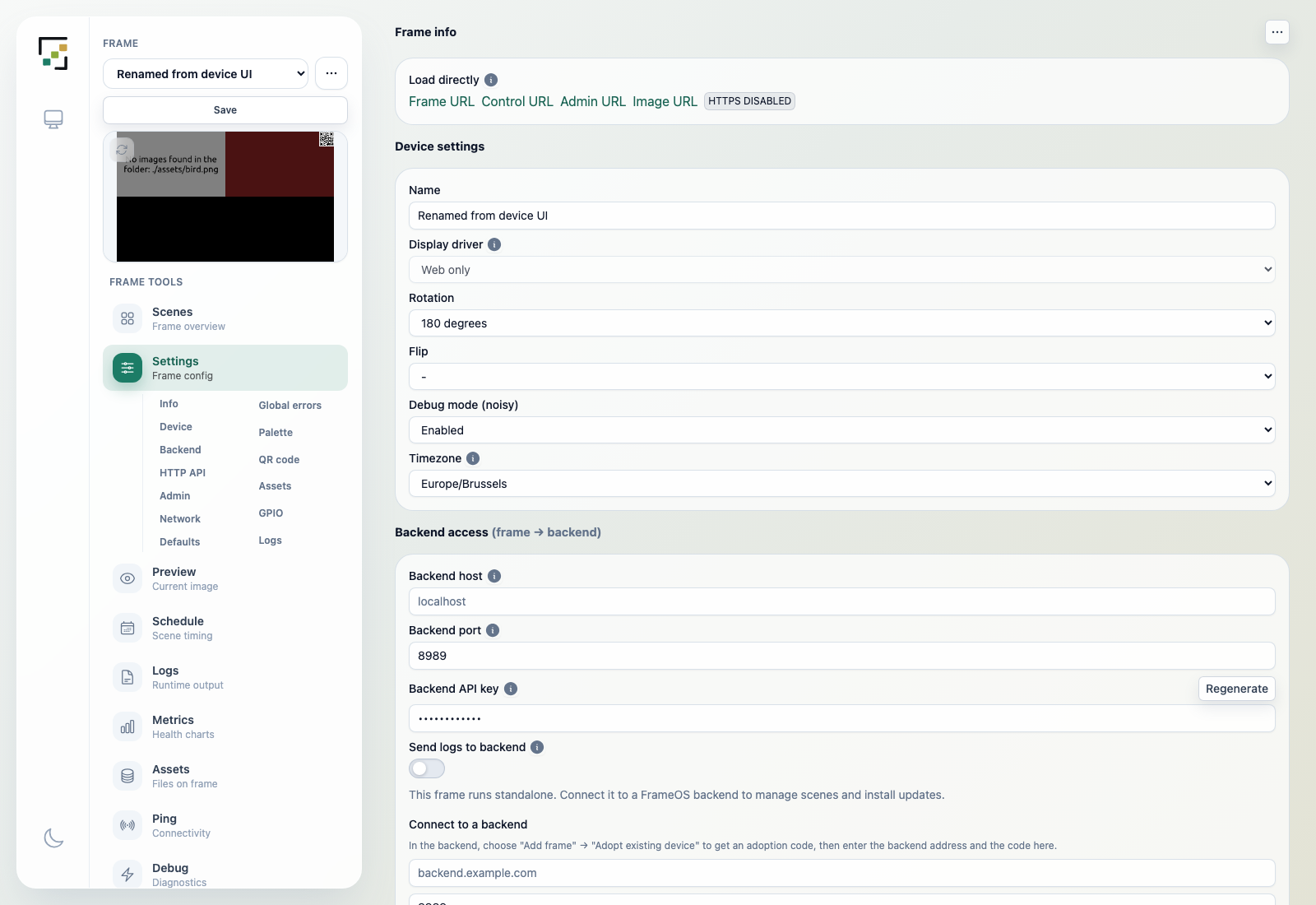
- Scenes - what is installed and what is active. Install scenes from the scene store - it is built into the Add scene drawer (FrameOS 2026.9.10+; the bundled samples stand in when the store can't be reached) - upload a scene ZIP, or open the node-graph scene editor right here. Interpreted scenes save and go live without a compile step.
- Settings - everything from Useful settings: name, display driver and rotation, time zone, access mode and the QR code, the color palette and colors, GPIO buttons and keyboard input, the setup hotspot, the HTTP API key, HTTPS, and which backend or cloud manages the frame. This is also where you connect a standalone frame to a backend with an adoption code, link it to FrameOS Cloud, or disconnect it again.
- Preview - the current image, live over a WebSocket.
- Schedule - render intervals and cron-like schedules, plus the maintenance restart and reboot timers.
- Logs and Metrics - runtime output and health charts (CPU, memory, temperature, render times), straight from the device. Logs only leave the frame if you switch on Send logs to backend, or Ship logs and metrics to the cloud on a cloud-linked frame.
- Assets - files on the frame's SD card: fonts, images, downloaded scenes.
- Debug - on-device diagnostics. (Ping and Terminal exist only in the backend.)
- Settings → FrameOS upgrade - the frame downloads a new release itself, verifies the signature, swaps it in and restarts - rebooting only when the new release needs it. Cloud and backend only nudge it; the binary never passes through them.
The frame's … menu at the top right re-renders, restarts, reboots the device and brings back the status screen (Render status screen). Frames on an HDMI/framebuffer display or a HyperPixel also get Turn display off / Turn display on there (2026.9.18+).
The admin panel is how a standalone frame is managed at all, and it stays available on frames that a backend or the cloud manages - which is why the frame can always be moved between the three without a reflash. ESP32 frames do not serve it: they answer the HTTP API and a small setup page, and are managed from the backend or cloud.
Access modes
Under the frame's settings you choose who can do what without a key:
- Private (default) - a key is required to view and to control.
- Protected - anyone on the network can view the image; the key is required to change anything.
- Public - no key needed for anything. Makes for the smallest QR codes.
The access key travels as a ?k=... query parameter (or a cookie after the first visit).
The HTTP API
Everything the control page does is a plain HTTP call. With KEY being your access key:
# the current image as PNG
curl "http://frame:8787/image?k=KEY" -o now.png

# the active scene and its state
curl "http://frame:8787/state?k=KEY"

# all scenes and their states
curl "http://frame:8787/states?k=KEY"

# change state fields on the active scene and re-render
curl -X POST "http://frame:8787/event/setSceneState?k=KEY" \
  -H "Content-Type: application/json" \
  -d '{"render": true, "state": {"message": "Dinner at 7!"}}'

# switch to another scene
curl -X POST "http://frame:8787/event/setCurrentScene?k=KEY" \
  -H "Content-Type: application/json" \
  -d '{"sceneId": "<scene-uuid>"}'

# trigger a render right now
curl -X POST "http://frame:8787/event/render?k=KEY" -d '{}'
The frame remembers the scene it shows: after a restart or a reboot it comes back to that scene (FrameOS 2026.10.18+; older releases could start on their first scene instead).
POST /event/<name> dispatches any event into the running scene graph - the same mechanism
buttons, schedules, and apps use internally. This makes integrations trivial: a Home Assistant
automation, a cron job, a shell script, or a doorbell webhook can all drive your frame.
There's also a full admin REST API (config, logs, metrics, restart, reboot) under
http://frame:8787/api/ behind the admin login, and a WebSocket at /ws that streams renders.
The events that control the device itself - reboot, restart, reload and uploadScenes - need
the admin login or the backend's API key too; the access key (?k=) can't trigger them.
From FrameOS 2026.9.13, a request that changes something and carries a browser Origin header must
come from the frame's own address, so a web page on another site can't post to your frame. curl,
scripts and Home Assistant send no Origin and are unaffected. Behind your own reverse proxy, pass
Host through or send X-Forwarded-Host.
Scheduling
Frames have their own on-device scheduler: render intervals per scene, plus cron-like schedules
(minute/hour/weekday) that can switch scenes or fire events - for example, a calendar during the
day and art in the evening. Configure it under the frame's Schedule tab. The schedule runs on
the frame, in the frame's own time zone, so it keeps working with the
backend off. When in doubt about what the frame will do next, check Logs: on start and after
every schedule change it logs scheduler:loaded with its zone, local time and the next due entry
("Mon 01:02 reboot"), and every firing logs scheduler:fire.
The same panel has a Maintenance card that schedules a restart of the FrameOS
process or a full reboot of the device - the successor to the nightly-reboot setting, on both
Raspberry Pi and ESP32 frames.