
 FrameOS
First deploy
Add a frame to the backend, install a few scenes, and deploy them to the device.
This page is written for the self-hosted backend. It assumes you have it running and a Raspberry Pi reachable over SSH (or booted from a FrameOS SD image). Using an ESP32 instead? Flash it first - the scenes and deploy flow below work the same way. On a standalone frame or in FrameOS Cloud the frame is already added; skip to installing scenes, which looks the same in all three.
Add the frame
Click "New frame" in the backend and pick how this frame gets set up:
- Download SD card - build a preconfigured Raspberry Pi image.
- Install over SSH - deploy to a Pi the backend can already reach. Enter its IP or hostname
and SSH credentials (
user:password@hostin one go works too). - Install with a script - one command to paste on the device when SSH isn't an option.
- Flash embedded device - build and flash ESP32 or Pico firmware, straight from the browser.
- Virtual frame - no hardware at all; the backend renders to an image URL.
- Import frame - restore a frame you exported earlier as JSON. The export contains every secret of the frame, so keep it safe.
- Adopt frame - take over a Pi that is already running FrameOS on its own (booted from a generic SD image, say). Give the backend the frame's address and its admin login; it imports the frame's settings and scenes, keeps its access key so existing links work, and points the frame at this backend, restarting it so logs start flowing right away. Adoption goes over the frame's own admin API (backend 2026.9.12+): a generic-image card has no SSH and no Remote, so the deploy drawer says "No shell on this frame", deploys are fast deploys over that API, and Update FrameOS runs the frame's own signed upgrade. Scenes, settings, assets, fonts, service keys, logs, restart and reboot all work; the Terminal doesn't. The admin login is the backend's only way in, so it can't be switched off on such a frame. ESP32 frames can't be adopted - flash those from the backend instead.
Then name the frame and select the right display driver for your panel - there are over 120 to choose from, organised by vendor. Pick "Web only" if you just want to try FrameOS without any display hardware. HDMI frames detect their display's resolution themselves.
Before a scene arrives, the frame shows the FrameOS status screen: its name, display and resolution, network address, a live clock and time zone, who manages it and "Waiting for the backend to deploy a scene." Once it has scenes, that same screen lists them, an Inputs row names the GPIO buttons and input drivers it has, and it notes the last GPIO button pressed - handy when a panel looks blank and you want to know whether the frame is fine, or whether a button is wired right. Bring it back any time with Render status screen in the frame's … menu.
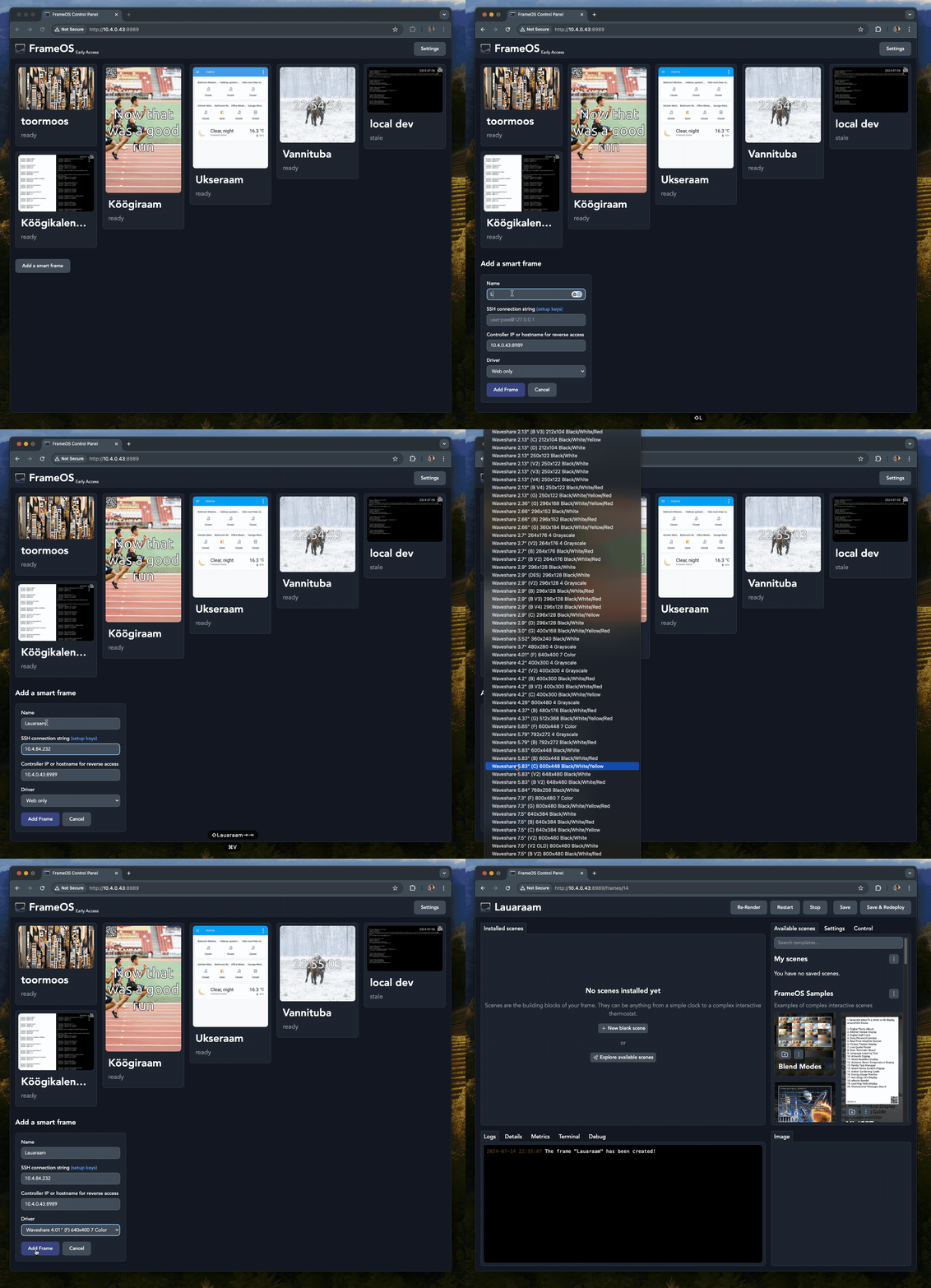
Install some scenes
Install a few scenes onto the frame from the scene store - Add scene → Scene store. Good first picks:
- Gallery scenes like Made in Space or Masterpieces - curated art that needs no configuration.
- Sample scenes like Calendar, Message board, or Unsplash image - some need API keys, which you can add under the backend's Settings page.
- Your own photos - upload an album under Photos and Install on frame.
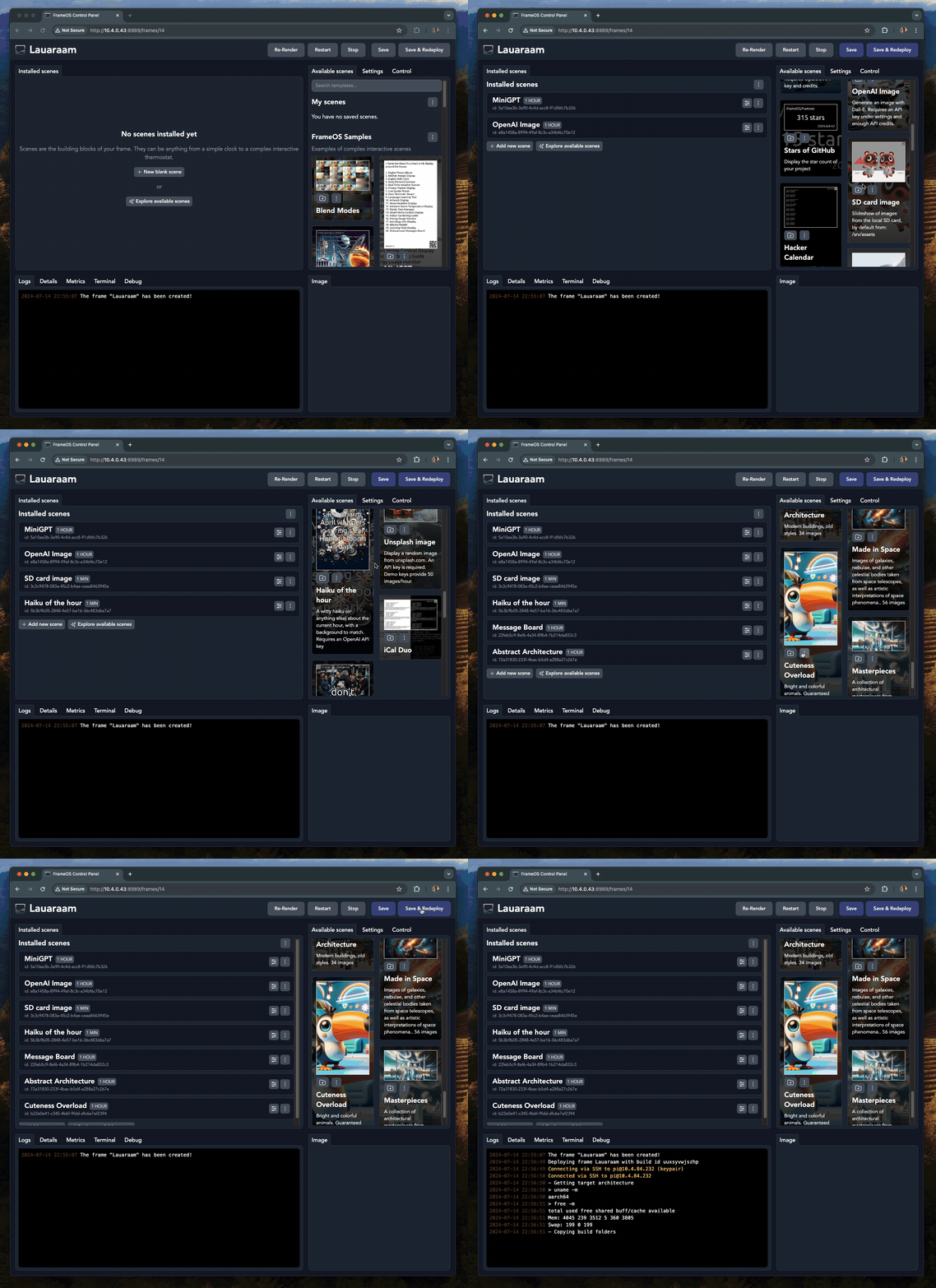
Deploy
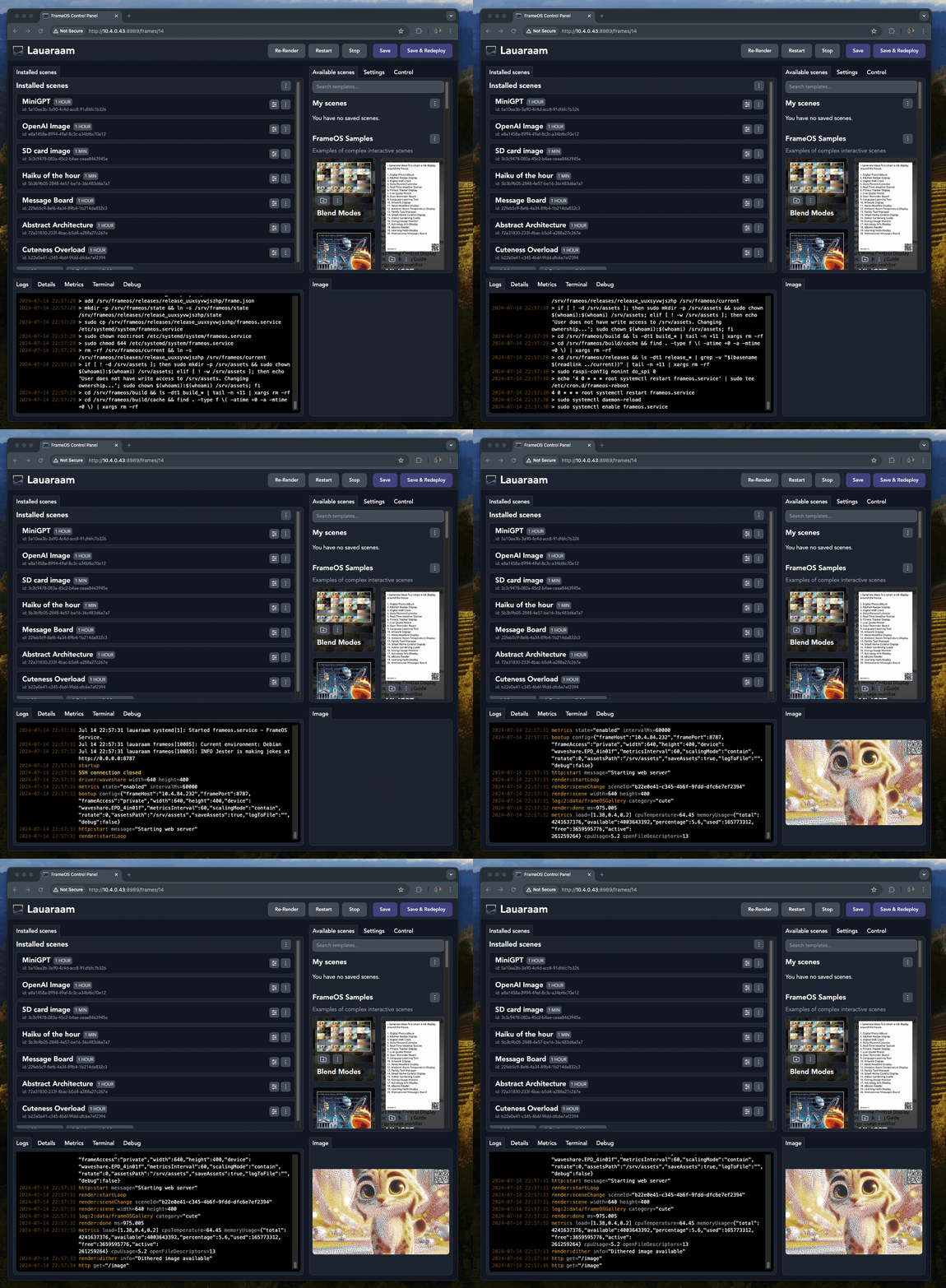
Press Deploy. The backend shows a deploy plan - what gets uploaded, what gets installed - and streams the progress log, and a progress bar on the frame's card follows it from the click to the first render. The first deploy takes the longest (it installs dependencies and uploads the FrameOS binary). After that, Deploy scenes & settings only ships what changed, and Deploy FrameOS, scenes & settings reinstalls FrameOS first - the drawer highlights the one it suggests. Editing a scene afterwards is quicker still - scenes are interpreted, so nothing is rebuilt, and ESP32 frames simply receive the new scene JSON over WiFi.
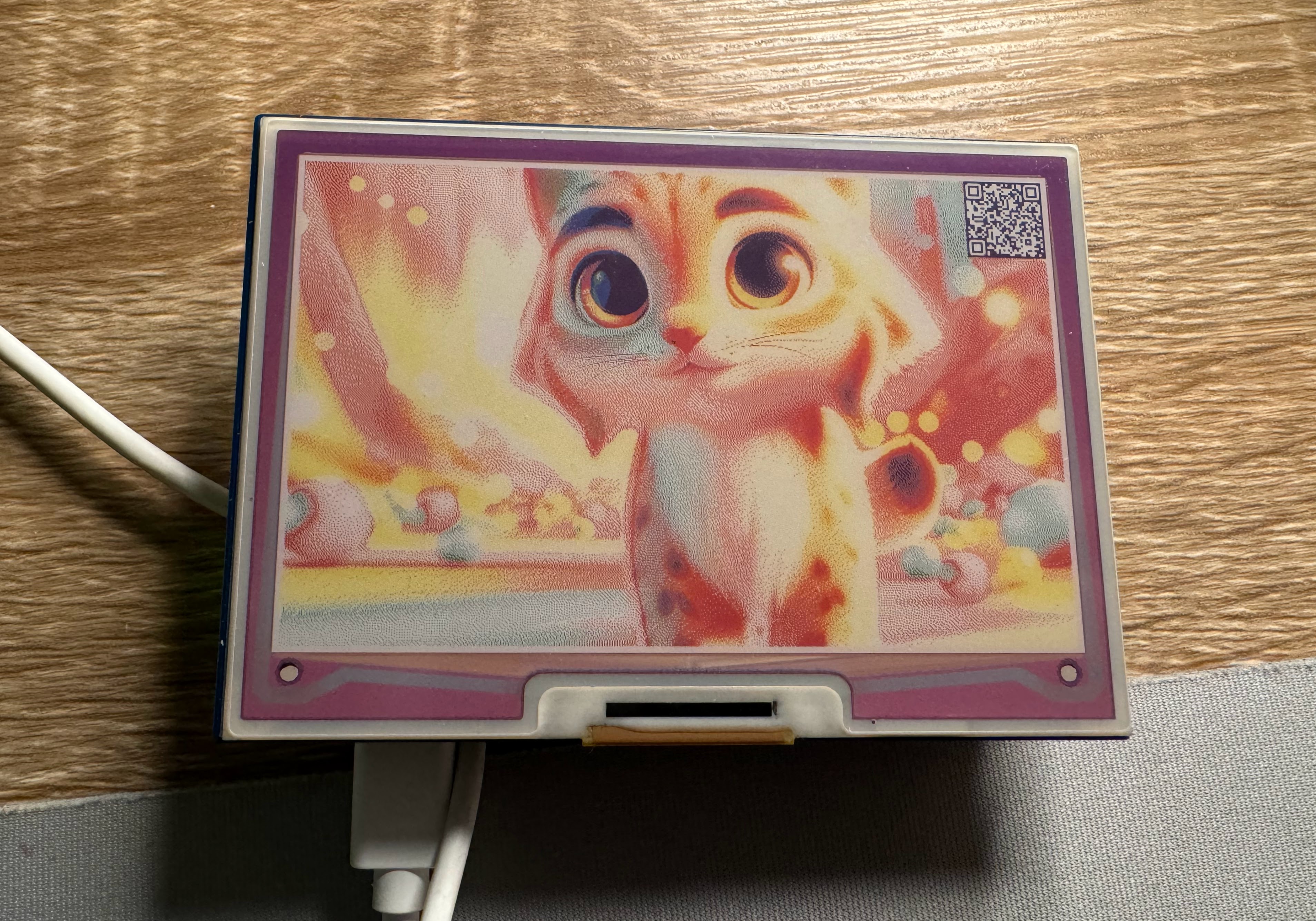
When it finishes, a preview image appears in the backend, followed by the same image on the frame itself.
Control the frame
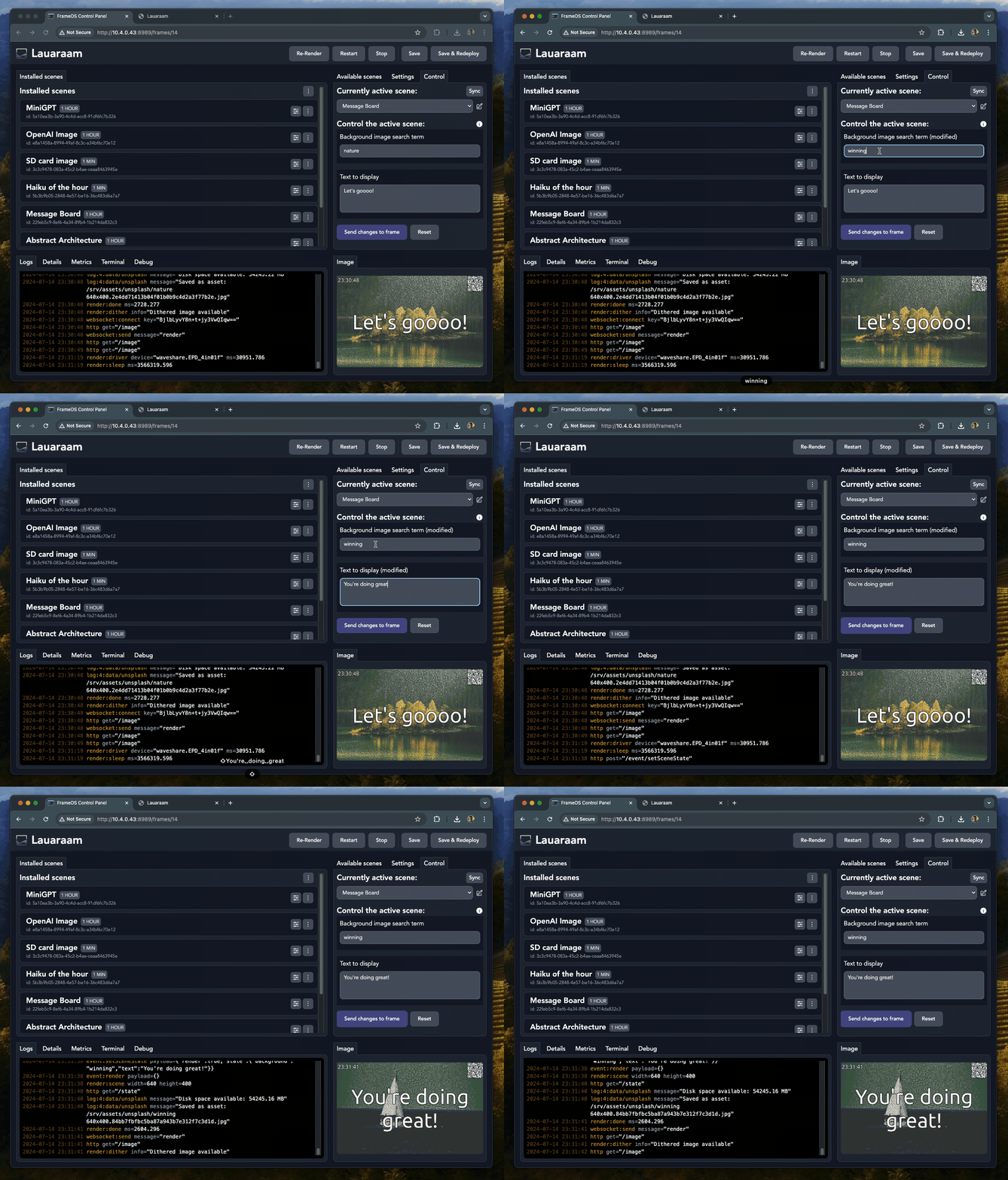
Scenes expose controls - a calendar URL, a message to display, a color. Change them from the frame's dashboard in the backend, or directly on the frame itself:
- Open the Control URL (shown under the frame's settings) from any browser on your network.
- Or scan the QR code shown on the frame.
In the backend, clicking a frame in the left rail unfolds its tools right under it - Scenes,
Settings, Preview, Schedule, Logs, Metrics, Assets - and each has its own URL
(/frames/<id>/logs), so you can bookmark a frame's logs.
The frame serves this control page itself, on port 8787. The backend doesn't need to be
running - see Controlling the frame for the full local HTTP API.
Next step
Build your own scene in the scene editor.